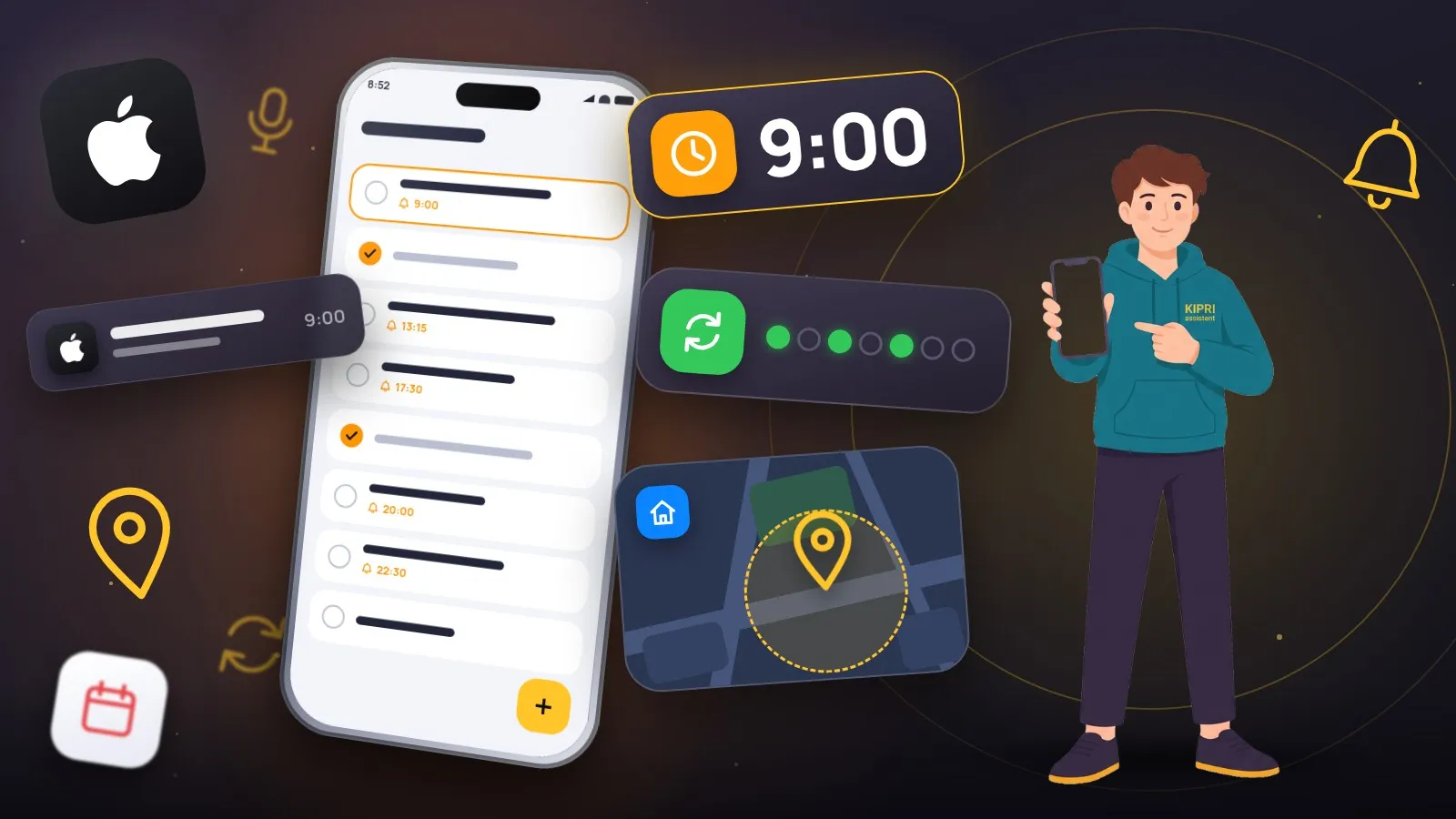
The iPhone has the Reminders app for this, and Siri creates reminders in that same app. Setting the first one is easy; the questions come afterwards. Why did the reminder arrive at nine in the morning when you needed it in the evening? How do you make it repeat? Why did “when I get home” stay silent?
Everything below comes from Apple Support. The iPhone User Guide currently describes iOS 27; where a feature arrived in a particular version, the version is named.
Voice is the fastest
Apple gives four examples, and between them they cover all three kinds of reminder: timed, repeating and location-based.
- “Remind me tomorrow at 3:00 p.m. to call Tara.”
- “Remind me to feed the dog every day at 7:30 a.m.”
- “Remind me when I get home to check the mail.”
- “Remind me when I leave here to stop by the grocery store.”
For Siri to know what “home” and “work” mean, Apple suggests adding the addresses to your card: Contacts → My Card → Edit, add your work or home address, then tap Done.
A reminder made with Siri goes to the default list. You choose which list that is in Settings → Apps → Reminders → Default List.
By hand: date and time
- Open the Reminders app.
- Tap New Reminder and type your reminder.
- Tap the Date and Time button. Apple lists Today, Tomorrow, This Weekend and Next Week, plus Custom to set your own day and time.
This is where the most common surprise sits. If a reminder has a due date but no time, “the notification appears by default at 9:00 AM.” A “pick up the parcel” reminder for Friday with no time arrives in the morning, not when you are walking past the pickup point.
You can change that hour for all such reminders at once: Settings → Apps → Reminders, then tap the time below All-Day Reminders. The User Guide calls the same setting Today Notification.
The same thing can be done from Calendar in iOS 18 and later. Tap the + button at the top of the screen, tap Reminder, enter a title, then use Date and Time. To see scheduled reminders alongside your events, tap Calendars at the bottom of the screen and select Scheduled Reminders.
Repeat
Tap the reminder and open its details. Turn on Date or Time, tap Repeat, then choose the frequency. That is the order the guide gives: a date or time first, the repeat second.
One quirk of repeats shows up in Calendar. According to the guide, future instances of a repeating reminder are dimmed “and can only be marked complete after the most current instance is marked complete.” You cannot tick off tomorrow’s pill in advance.
With Apple Intelligence you can also set a repeat by describing it. Apple’s example is “Feed the cat every evening at 5pm”: Reminders fills in the details and timing from what you typed. Apple Intelligence needs a supported iPhone (iPhone 15 Pro, iPhone 15 Pro Max, or iPhone 16 and later) and is not available in all languages or regions.
A heads-up before the time
A reminder has an Early Reminder option: an extra alert before the scheduled date and time. The guide’s examples are “5 minutes before” and “2 days before”. Pick by what you can still do about it: two days out you can reschedule the doctor, five minutes out you can only run.
Urgent: when missing it is not an option
iOS 26.2 added an Urgent switch. Reminders then schedules an alarm for when the reminder is due, and, in Apple’s words, “alarms activate even when your device is silenced or a Focus is on.” An ordinary notification on a silenced phone arrives without a sound.
You turn it on in the reminder’s details, under Date & Time. If Date and Time are not set, they default to the next hour.
Urgent reminders have three conditions, all from Apple Support:
- you need iCloud Reminders set up;
- Reminders must be allowed to access alarms: Settings → Apps → Reminders, then turn on Alarms under Allow Reminders to Access;
- the alarm only activates on the device that Find My uses as your location. To see which one that is, open Find My and tap Me. If you own an iPhone and an iPad, an urgent reminder may ring on the tablet you left at home.
By location
Tap the Location button and select one of the options provided, or tap Custom to add your own place. Then choose whether to be notified when arriving or leaving, and set the perimeter of the reminder area.
The User Guide names one more option: being reminded when you get into a car with a Bluetooth connection to your iPhone. It suits “stop for fuel” and “pick up the kid”.
A location reminder depends on two settings, both under Settings → Privacy & Security → Location Services:
- Location Services itself has to be on;
- for the Reminders app, choose While Using the App and turn on Precise Location.
When you are texting someone
The When Messaging option ties a reminder to a conversation instead of a time or a place. Turn it on in the reminder’s details and choose someone from your contacts. The next time you chat with that person in Messages, a Reminders notification appears. It works well for questions that do not justify a separate call: money owed, a message to pass on, an address to confirm.
If the reminder did not come
Start with what is specific to Reminders.
No time was set. Then it arrived at 9:00 AM, or at whatever hour is set for all-day reminders.
The reminder sound is off. It is set separately from other sounds: Settings → Sounds & Haptics → Reminder Alerts. With None selected, the reminder appears on screen with no sound.
Mute Notifications is on. This switch in the app’s settings turns off notifications for assigned reminders, the ones given to you in a shared list.
It is a location reminder and location access is closed. Check both settings from the section above.
The urgent reminder rang on another device. Look at Me in Find My.
You are not using iCloud. Apple notes that all the features described are available with updated reminders in iCloud, and some are not available with other accounts.
After that come the causes shared by all iPhone notifications: Allow Notifications switched off, a Focus, the Scheduled Summary, a silenced phone. The iPhone notification check is the quicker way through those: it keeps only the causes that match your complaint.
A reminder can be closed right from the Lock Screen. Swipe left over it, tap View, then tap Mark as Completed.
About KIPRI
We make KIPRI, an app for reminders, tasks, birthdays and habits. The iPhone version is in the works, the Android version comes first, and there is no build to download yet. So on iPhone the honest advice today is simple: the built-in Reminders app covers everything described above. Which chores are worth a repeat and which are better left one-off is the subject of our article on recurring reminders.
Did this help?
Thanks, that is the best answer. If it helped, it may help someone else too.
Thanks for saying so. Tell us what was missing and we will add it: [email protected]