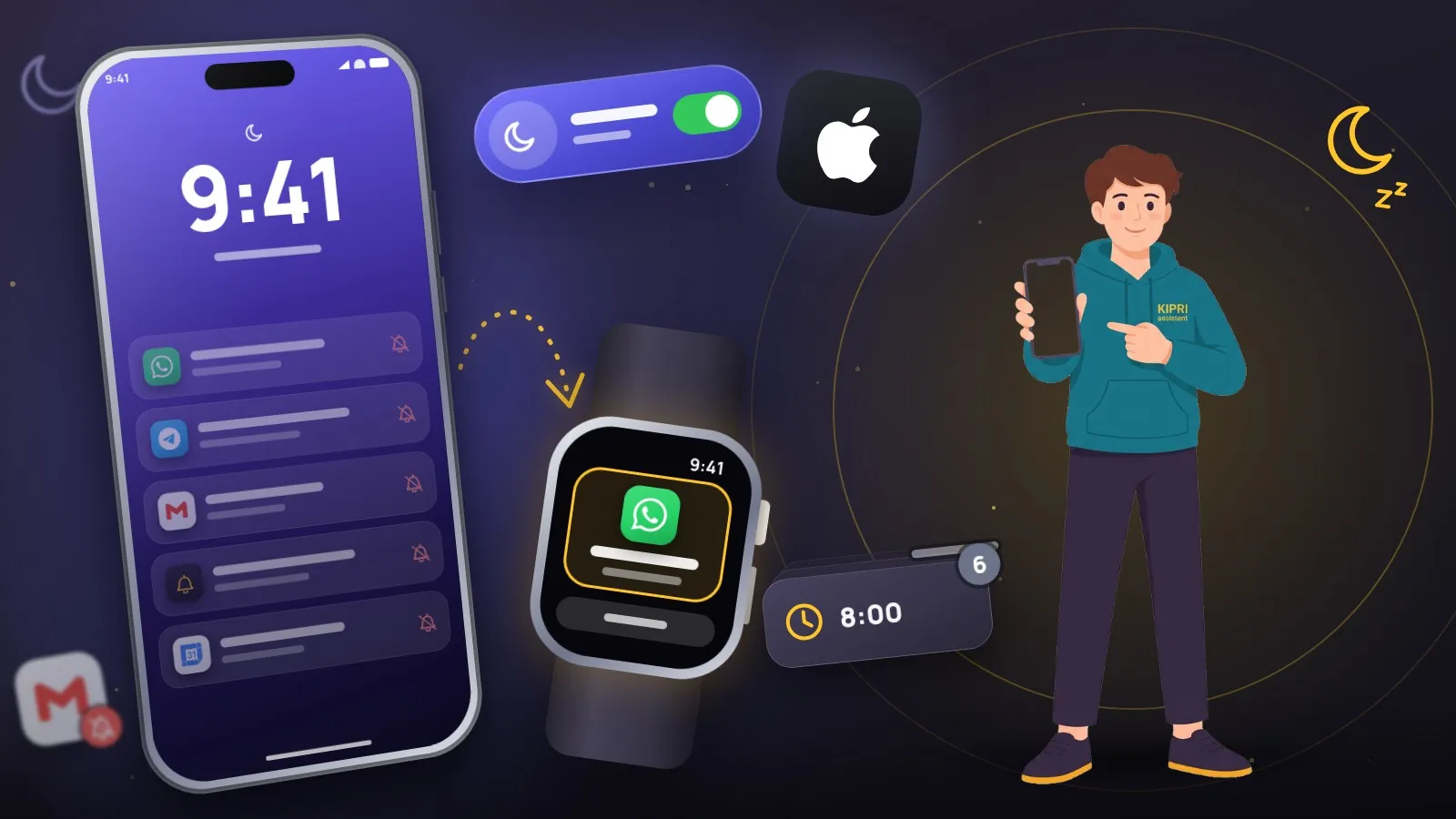
An iPhone has no autostart list and no “sleeping apps”, the two things that eat notifications on Android. What it has instead is a handful of places where a notification can be switched off, held back or sent to another device, and then forgotten about. They are listed below in the order that is quickest to check.
Every label comes from Apple Support in English. The iPhone User Guide currently describes iOS 27. On older versions some items are named differently, so look for them by meaning or use the search at the top of Settings. If you would rather not read the whole list, the iPhone notification check keeps only the causes that fit your problem.
1. Is the app allowed to send notifications?
Apple’s path: Settings → Apps → the app → Notifications → Allow Notifications. A second route ends on the same screen: Settings → Notifications, then the app below Notification Style.
If the app has no Notifications item at all, Apple explains it like this: “the app might not be able to send notifications.” Usually that means the app has never asked for permission. Open it and get to the point where it is supposed to remind you of something.
The switch can be on and you still see nothing. Three things on that same screen are worth a look:
- Alerts. This is where a notification is allowed to appear: on the Lock Screen, in Notification Center, or as banners. With banners unticked it still arrives, it just does not pop up over whatever you are doing.
- Sounds. Without a sound a notification is easy to miss when the phone is lying on a desk. The item is there only if the app supports it.
- Show Previews. The options are Always, When Unlocked and Never. Apple’s guide files this under preventing previews from appearing on the Lock Screen, so with Never the text of the notification stays hidden there.
2. Did you mute it yourself?
This is the least visible cause. Swipe left over a notification, tap Options, and a menu opens: Mute for 1 Hour, Mute for Today, View Settings, Turn Off. One careless tap and the app is quiet until tomorrow, or for good.
You check it in the same place as step one. If Allow Notifications is off and you never touched it, Turn Off is the likely culprit.
3. Focus and Do Not Disturb
The iPhone User Guide says you can use a Focus “to temporarily silence all notifications, or allow only specific notifications”. There are several of them: Do Not Disturb, Personal, Sleep, Work. Each has its own list of allowed apps and people.
First see whether one is on right now: open Control Center and look at the Focus button.
Then check the list: Settings → Focus → the Focus → Apps. There are two ways to set it up. Allow Notifications From names the apps that may get through. Silence Notifications From does the opposite and names the ones that may not. If your app is missing from the first list or present in the second, it stays quiet while that Focus is on.
On the same screen there is Time Sensitive Notifications, which, in Apple’s words, “allows all apps to send time-sensitive notifications immediately”. A single app has a switch with the same name in its own notification settings, if the app supports it.
Even when nothing is blocked outright, a Focus slows things down. The guide puts it plainly: “When you use Focus, it delays the delivery of notifications on iPhone to prevent interruptions.”
Calls are handled separately. Under People you can allow calls from certain groups and allow repeated calls. Apple counts as repeated “two or more calls from the same person within 3 minutes”. And for a contact you cannot afford to miss in any mode there is Emergency Bypass: Contacts → the contact → Edit → Ringtone or Text Tone. With it, sounds and vibrations from that person come through even when the iPhone or its notifications are silenced.
The Focus was turned on from another device
Settings → Focus has a Share Across Devices switch. Apple describes it as using the same Focus settings on all your Apple devices where you are signed in to the same Apple Account. If you own an iPad or a Mac and turned a Focus on there, check whether it came on on the iPhone too.
4. Scheduled Summary
With the summary nothing is lost. Notifications arrive in a batch at the times you picked, and from the outside that looks like “the reminder came three hours late”.
The path is Settings → Notifications → Scheduled Summary. That screen shows whether the summary is on, what times it is set for and which apps are in it. If you use the summary, each app’s notification settings get a Notification Delivery section with two options: Immediate Delivery and Scheduled Summary. An app whose reminders must come on time belongs in the first.
5. Silent mode
Apple Support covers this in one sentence: “If your device is silenced, your notifications will not alert you with a sound.” They still show up on the screen, you just will not hear them. Another Apple page adds the second half: “If your phone is silenced or the volume is turned down completely, notification sounds will not play.” Start here if your complaint is “the notifications are there, but there is no sound”.
6. Apple Watch
With a watch, a notification lands on one device only. Apple’s wording: “Notifications appear on your Apple Watch or iPhone, but not both.” If your iPhone is unlocked, you get notifications on your iPhone instead of your Apple Watch. If your iPhone is locked or asleep, you get them on your Apple Watch, unless the watch is locked.
So if the phone is lying locked and silent, look at your wrist: the notification may have gone there. It works the other way round as well. When the Apple Watch locks or you turn on Do Not Disturb on it, notifications go to the iPhone.
7. Low Power Mode
Among the features Low Power Mode limits, Apple lists two that touch notifications: it “Turns off email fetch” and “Turns off Background App Refresh”. If email has started arriving late, glance at the battery icon in the status bar. It turns yellow while the mode is active.
The mode switches itself off once the phone is charged to 80% or higher. To check by hand, go to Settings → Battery. On iPhone 15 and later there is one more tap, Power Mode.
If only Messages stays quiet
Apple has a separate page for this case, and it names causes you will not find in the general settings.
The first is Hide Alerts on a conversation. Open the conversation, tap the image or icon at the top and turn Hide Alerts off. While it is on, the Hide Alerts icon sits next to that conversation in the list. Apple points out that it “stops notifications only for that conversation, not for everything on your iPhone”.
The second arrived with iOS 26. Filter Spam for Messages is on by default there, and when you also turn on Screen Unknown Senders, you do not receive a notification for messages from unknown senders or for messages identified as spam. The messages themselves sit in the Unknown Senders filter or the Spam folder in Messages. This is a likely place for a verification code or a courier’s text from a new number to end up. Apple’s fix: mark the sender as known, or move the message out of Spam into your conversations list, and notifications for it come back.
One more line from the same page is easy to overlook: while the Messages app is open and active, you do not get a notification for each new message.
What matters for reminders
A reminder is only worth something if it arrives on time, so for a reminders app three of the points above are worth the walk: Immediate Delivery instead of the summary, a place under Allow Notifications From in every Focus you actually use, and sound turned on. Which things deserve a repeating reminder in the first place is a separate question, covered in the article on recurring reminders.
KIPRI for iPhone is still in the works, and the Android version comes first. If you are on Android and notifications go missing there, the causes are different: battery limits and autostart. They are sorted by brand in the Android notification check.
Did this help?
Thanks, that is the best answer. If it helped, it may help someone else too.
Thanks for saying so. Tell us what was missing and we will add it: [email protected]