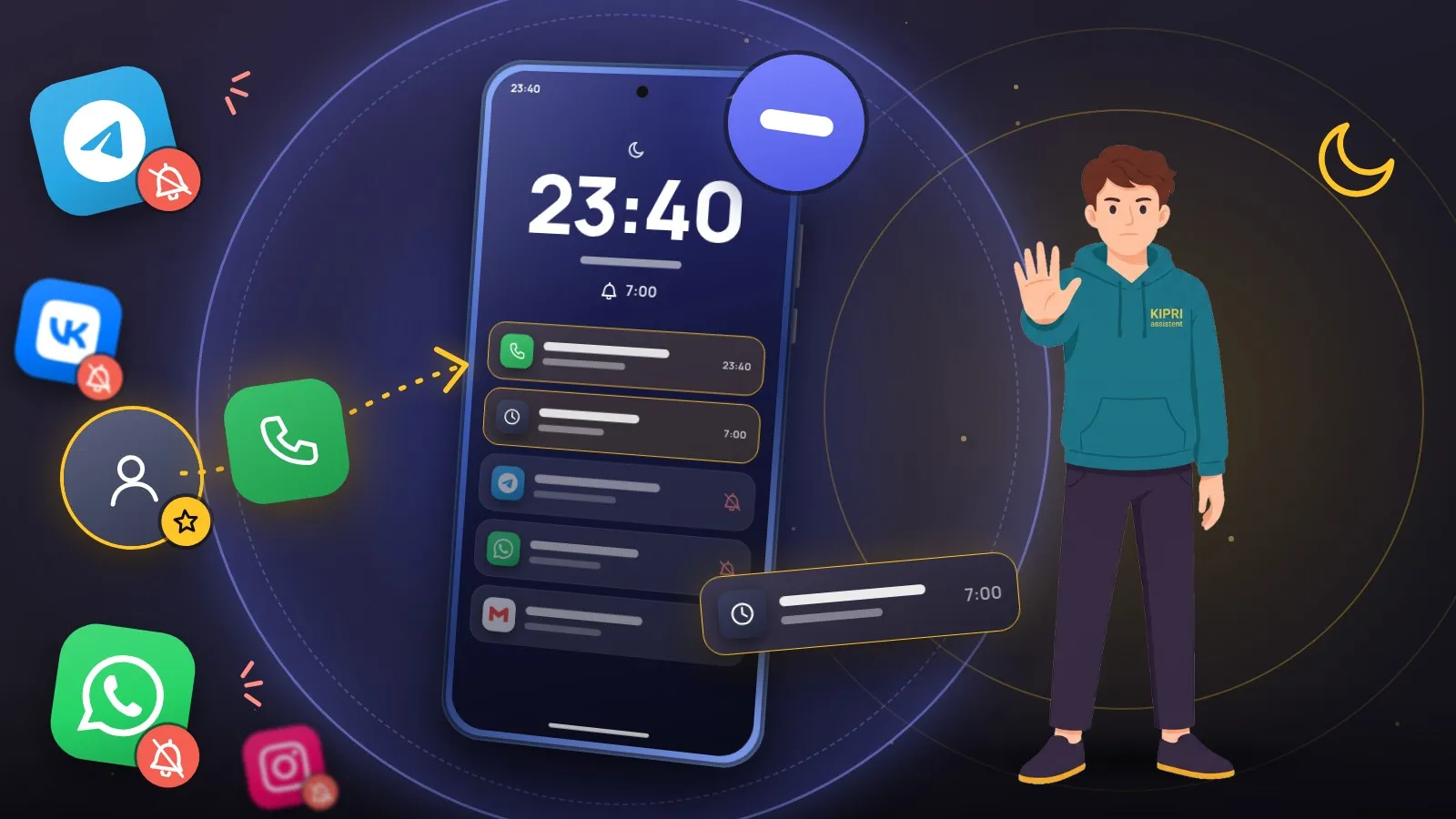
People complain about Do Not Disturb for opposite reasons. Some turn it on for the night and a messenger keeps pinging anyway. Others wake up to a missed call from family and a doctor’s reminder that never made a sound. Both problems come from the same place: the mode’s exceptions.
What follows is based on the official help pages from Google, Samsung, Xiaomi and Huawei. Menu labels shift between versions, so look for them by meaning.
What the mode actually does
Do Not Disturb mostly takes away sound and vibration. Samsung’s help puts it this way: with the hide-notification toggles off, the phone still shows notifications on screen, only silently. Huawei goes further: no sound, the screen does not wake, no banners, but notifications still wait in the panel.
Some things cannot be blocked at all. Google’s help says: “With any settings, critical notifications show. For example, you can’t block system security notifications.” Samsung has a similar note about critical notifications on phone status.
Where the settings are
- Pixel and stock Android: Settings → Modes → Do Not Disturb. Google notes that some steps need Android 14 or later; older versions keep it under Sound.
- Samsung: Settings → Notifications → Do not disturb. On Android 8 and earlier it sat under Sounds and vibration.
- Xiaomi, Redmi, POCO: Settings → Sound & vibration → Do not disturb.
- Huawei: Settings → Sounds & vibration → Do Not Disturb.
The quick route is the same everywhere: the tile in Quick Settings. On Samsung and Huawei, a long press on it opens the mode’s settings.
Why notifications get through
This is the most common question, especially about Xiaomi and POCO. Xiaomi has a help page on exactly this, and it lists four causes.
The mode only works while the phone is locked. The option is called Only when device is locked, and Xiaomi is blunt about it: with it enabled, “the Do not disturb mode will close when your phone unlocked”. So in the evening, while you are scrolling, everything rings as usual. POCO runs the same software, so this applies there too.
The app is excluded or has its own settings. First on Xiaomi’s list: sounds stay if an app has been excluded from Do Not Disturb or has separate notification settings.
It runs on a schedule. Outside the scheduled hours it does nothing. If it starts at 11 pm, a message at 10:50 still makes a sound.
Repeat callers. With Notify about repeated calls enabled, the phone rings when the same contact calls a second time within 15 minutes.
Other brands work much the same way. Huawei’s help describes a per-app switch in notification settings that marks the app as a priority: with it on, that app’s notifications arrive even in Do Not Disturb. On Pixel the exceptions live under Notification filters → Apps.
There is also a detail at the Android level. Permission to break through is given not to a whole app but to a single notification channel. The developer documentation says an app with Do Not Disturb access can set this on its own channels, but only as long as you have not changed that channel yourself. So if one app keeps breaking through, check its channels. On Samsung, also look at Settings → Apps → ⋮ → Special access → Do not disturb access.
Letting the right people call
Here the options are similar across brands.
On Samsung, Calls has four choices: All, Contacts only, Favorite contacts only and None. Messages are set up the same way.
On Google’s side it is People under Notification filters, where you decide whose calls, messages and conversations get through. Motorola’s help, which describes near-stock Android, spells it out: calls from starred contacts, from all contacts, from anyone, or from no one. The same screen lets you allow all conversations or only priority ones.
On Huawei it is Calls and Messages inside the mode’s settings.
Google, Xiaomi and Huawei also offer a safety net, repeat callers: a second call from the same number within 15 minutes rings.
Alarms and reminders
Motorola states that alarms and media sounds are allowed by default, but you can turn them off. That last part is the catch. On Pixel the switch is under Notification filters → Alarms & other interruptions; on Samsung it is under Alarms and sounds, and Samsung also has an Alarms only option. If alarms are switched off in the exceptions, the alarm stays silent. Google’s Clock even has a message for it: “Do Not Disturb silenced your alarm. Allow alarms in DND settings to prevent this in the future.” The other reasons an alarm stays quiet, from silent mode to its separate volume slider, are covered in the article on why an Android alarm did not go off.
Reminders and calendar events sit in the same list. On Samsung they are separate toggles under Alarms and sounds. If your reminders come from a particular app, it is more reliable to add that app to the exceptions.
When it turns itself on
Samsung lists what to check if Do Not Disturb switches on without you: its schedule, the rest mode in its Digital Wellbeing section, apps with Do not disturb access, Bixby Routines, and Priority mode in Game Booster. On Pixel, Bedtime mode also silences notifications and can run on a schedule or turn on while charging.
If Do Not Disturb checks out and notifications still arrive late or not at all, the usual suspects are battery limits and autostart. Step-by-step paths for your brand are in the checker: Xiaomi, Redmi and POCO, Samsung, Huawei and Honor. The general causes are covered in Android notifications not working.
Did this help?
Thanks, that is the best answer. If it helped, it may help someone else too.
Thanks for saying so. Tell us what was missing and we will add it: [email protected]