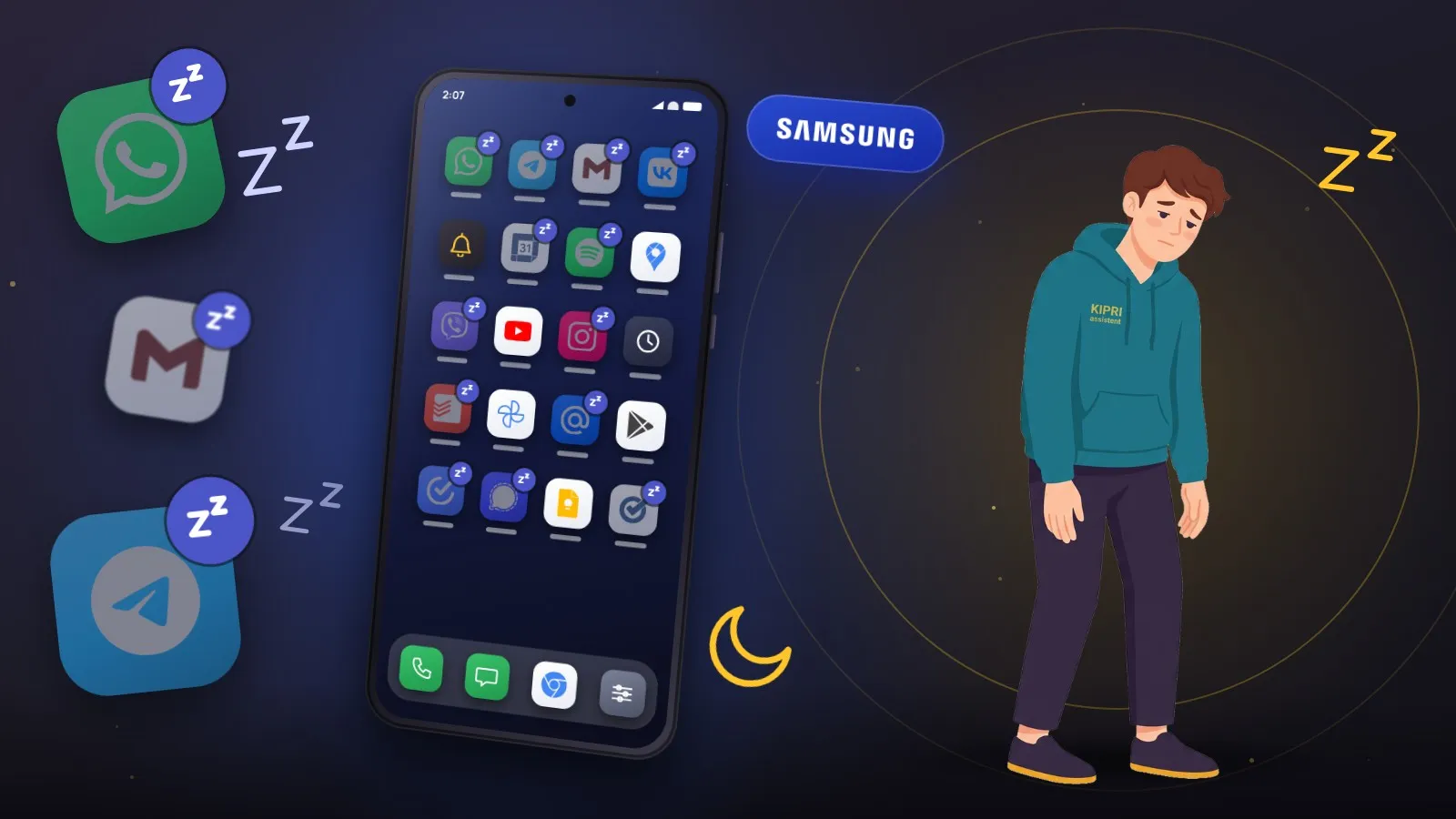
The banking app said nothing for a month, then delivered every notification at once the moment you opened it. Or reminders from an app you rarely touch just stopped. On a Galaxy phone the cause is often the same: One UI put the app to sleep and did not tell you.
Asleep and deeply asleep
One UI keeps two lists of sleeping apps, and they behave very differently. Samsung’s own descriptions:
- Sleeping apps “may resume background activity when you use them again”. The Russian version of the same help is blunter: updates and notifications from them may be delayed.
- Deep sleeping apps “will never run in the background. They’ll only work when you open them.”
So ordinary sleep delays notifications, and deep sleep stops them until you launch the app yourself. Nothing is switched off in the notification settings. There is simply nothing running in the background to deliver them.
How long before an app falls asleep
Samsung’s user help gives no timings. Its documentation for developers does:
- background apps that have not been used for about 3 days and are “causing poor system health (ex. battery consumption)” go into sleeping mode;
- apps not used for a long period go into deep sleep, “currently set to 16 days, but subject to change according to Samsung policies”.
Dontkillmyapp, a project that collects developer complaints about Android skins, adds an unpleasant detail: in its experience Samsung may put an app back to sleep after a few days even if you woke it up by hand. That is the community’s observation, not Samsung’s wording.
This explains the usual pattern. The messenger you open every day never sleeps. The utility bill app, the pharmacy reminder or the school app gets opened once a month, and lands in deep sleep just before the one notification you actually needed.
Where the lists are
Everything lives on the Background usage limits screen. The path depends on your version:
- One UI 7 and later: Settings → Battery → Background usage limits. Battery moved to the top level of Settings in One UI 7.
- Older One UI: Settings → Battery and device care → Battery → Background usage limits. This is the path Samsung’s US help still gives.
Inside you will find Sleeping apps, Deep sleeping apps and a list of apps that never sleep. Samsung’s help calls that last one Never sleeping apps; on many phones it reads Never auto sleeping apps. Samsung itself notes that feature names and paths vary with the Android version, so if a label does not match, search the settings for “background usage”.
The same screen has a master switch, Put unused apps to sleep. With it on, the system puts an app to sleep once you have not used it for a while.
Waking an app up
Take it off the list. Open Sleeping apps or Deep sleeping apps, tap More options (⋮), then Remove apps, pick the app and tap Remove. Check both lists: the app can be on either one.
Keep it from going back. Removing an app does not stop One UI from putting it to sleep again after another quiet stretch. To prevent that, add it to Never sleeping apps: tap +, pick the app, tap Add.
Lift the battery restriction. Separately from the lists, every app has its own battery setting. Samsung’s troubleshooting page for apps that stop in the background starts here: Settings → Apps → the app → Battery → Unrestricted. The same page suggests making sure background data is allowed for the app.
Every one of these steps for your One UI version, together with notification permission and exact alarms, is in the Samsung notification settings checker.
Turn auto sleep off, or protect a few apps?
You can switch off Put unused apps to sleep and stop policing the lists. Or you can leave it on and protect only what matters. Samsung is explicit about the cost: apps on the never sleeping list “do not automatically go to sleep/deep sleep, which may cause additional battery usage in the background.”
A sensible split: the never sleeping list gets the apps you need to hear from at a specific moment. Alarm, calendar, reminders, banking, messengers, smart home. Games, shops and anything you open on your own can sleep; their notifications can wait.
If the app is off every list, set to Unrestricted, and notifications still run late, look at Power saving mode. It trims background work for all apps at once, and if delays only happen when the battery is low, it is the likelier cause.
When everything is silent
One UI’s sleep explains why a rarely used app went quiet. If nothing at all is getting through, look elsewhere: Android permissions, notification categories, Do Not Disturb. The general guide covers that. And if it is timed reminders that arrive late, read about exact alarms on Android: that is a separate permission, and taking an app out of sleep does not grant it.
Did this help?
Thanks, that is the best answer. If it helped, it may help someone else too.
Thanks for saying so. Tell us what was missing and we will add it: [email protected]