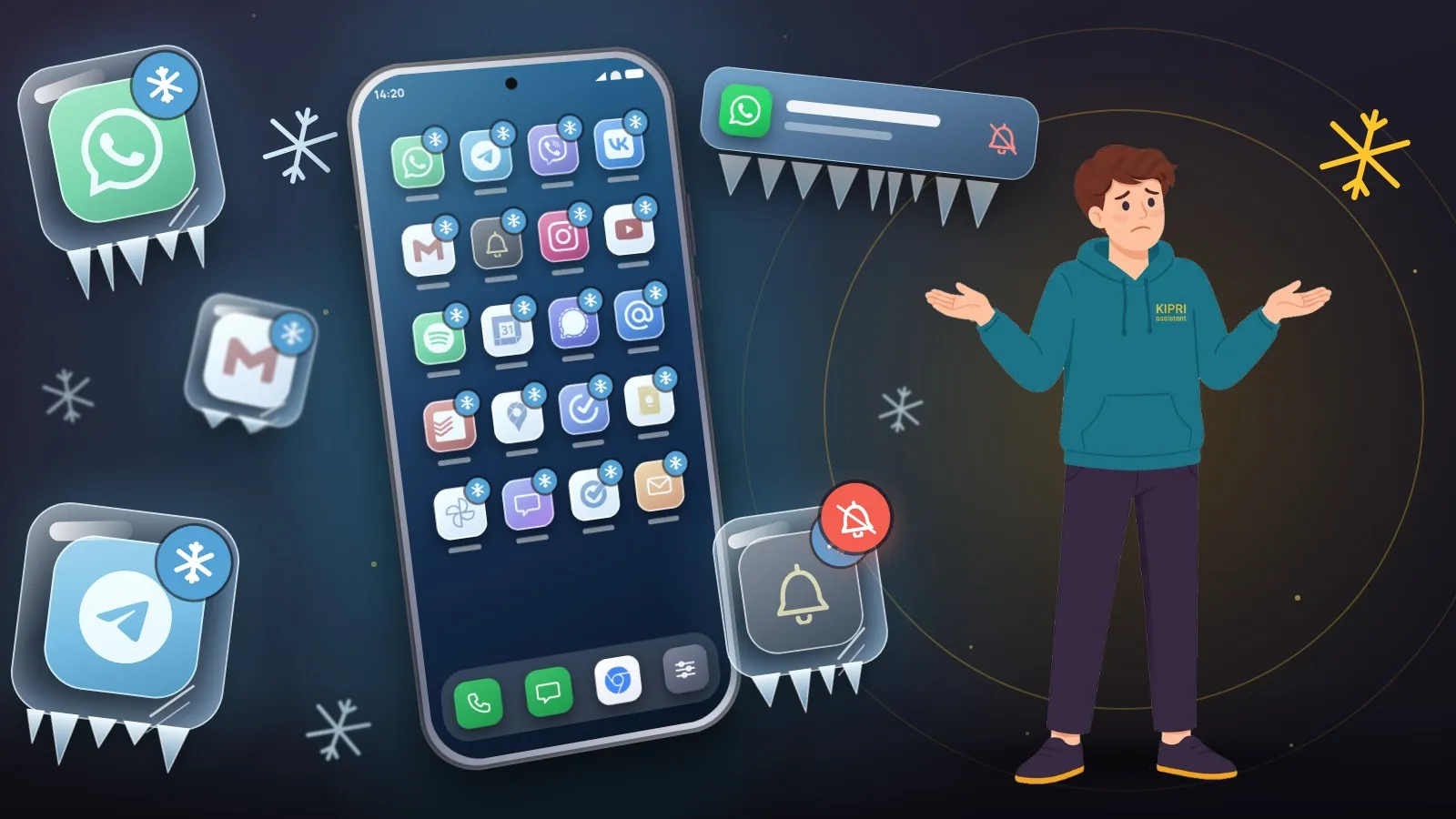
The complaints from Tecno and Infinix owners tend to sound alike. An app icon vanished. Notifications stopped. A download halts the moment the screen goes dark. It looks like one fault, but three separate mechanisms are involved: the freezer, the skin’s background limits, and Android’s own sleep mode. Each is fixed somewhere else.
Tecno and Infinix are both made by Transsion, and their skins are nearly the same: HiOS on Tecno, XOS on Infinix. Everything below applies to both.
What the freezer is for
Freezer is meant for apps you rarely open but don’t want to uninstall. Tecno’s official FAQ covers it in the HiOS section: find Freezer on the home screen or in the app drawer, tap “+”, and add rarely used apps “to totally freeze the background process of apps”. When you need one again, you unfreeze it.
Carlcare, the official service brand for Tecno, Infinix and itel, spells out what that means. A frozen app “won’t run, send notifications, or even show on your home screen until you unfreeze it.” Another Carlcare article compares freezing to uninstalling, except that the app’s data is kept.
So the rule of thumb is simple. If an icon disappeared and that app’s notifications went quiet at the same time, look in Freezer before anything else.
How to unfreeze an app
The steps from Carlcare’s help page:
- Long-press an empty spot on the home screen and tap Desktop Setting.
- Open Other settings and make sure the Freezer toggle is on.
- Go back to the home screen and open Freezer.
- Tap the app and confirm with OK at the bottom of the screen.
Newer versions of the skin may have moved these items. If you can’t see a Freezer icon at all, step 2 is the one to check: with that toggle off, there is nowhere to find the frozen apps.
Nothing is frozen, but background work still dies
Then another limit is at work. The dontkillmyapp project, which collects developers’ reports, describes Tecno phones like this: aggressive battery settings halt the app completely, “like frozen in time”, and timers and background services stop until you go back to the app yourself.
We found no official step-by-step guide from Tecno or Infinix for this. The most complete checklist we know of is on the Russian forum 4PDA. An Infinix owner posted it in the Tecno Pova 7 Pro thread and says he put it together after writing to support. The labels below are translated from Russian firmware, so the English wording on your phone may differ:
- Settings → App management → App list → your app: turn off the option that stops the app when idle.
- Same screen → Battery: turn on “Allow background activity”.
- Phone Master → Accelerate → Auto-start management: enable the app.
- Phone Master → top-left menu → Settings → Protected apps: add it.
- Recent apps → the small triangle next to the app name above its card → Lock.
The same checklist suggests reinstalling from the app store any app that misbehaves after being moved over from an old phone.
Why settings stop working after an update
We found no official explanation, so this is owners’ testimony only. In the Infinix Hot 60 Pro thread on 4PDA, one owner writes that turning off per-app power saving management used to fix the problem, and that the item was gone after updating to XOS 15.1.2. In his words, the app works for a while and then goes to sleep regardless of the permissions it has.
The checklist’s author replied that build X6885-15.1.2.145SP03 added a new option. Go to the battery saving and power consumption section of Settings, pick the app from the list under the battery usage stats, and set it to no restrictions. The list, he notes, takes a few seconds to load. Whether it helped is unclear: the first owner said he had tried that build too.
The takeaway is modest. After a major update, go through the whole list again, because items on HiOS and XOS get renamed or vanish even within one model.
Downloads stall when the screen locks
Android itself steps in first. According to the developer documentation, a phone that sits unplugged and stationary with the screen off enters Doze, and Doze suspends network access for apps. The phone leaves Doze when you move it, turn the screen on or connect a charger.
HiOS and XOS add their own layers on top. What to check:
- Data Saver. Google’s help says that with Data Saver on, most apps get background data only over Wi-Fi. If a download stops on mobile data but runs on Wi-Fi, start here, then check background data on the app’s own settings screen.
- Power saving. The 4PDA checklist says to open Battery saving and power consumption → Power saving and turn off power saving itself, its automatic switch-on, and sleep mode optimisation. According to dontkillmyapp, on older HiOS versions sleep optimisation went as far as switching on airplane mode at night.
- Network items. Some firmware, per the same checklist, has a smart network disconnect option in the power saving section and a data priority for running apps option under SIM & network settings → Network optimisation. Owners suggest turning both off. Tecno doesn’t document what they do, so we are going by the names.
- The app’s own background permissions. The same items as in the list above: background activity, idle stop, auto-start, the lock in recents.
Older phones
Older firmware uses different paths. Dontkillmyapp lists Settings → Battery Lab → Battery Saving Settings, where you disable Power Saving Management for apps, and Phone Master → Toolbox → Auto-start management. For those versions it also suggests turning off “Screen off push block” and “Screen off sleep” in the advanced settings. Exact labels vary, and the settings search is the quickest way to find them.
Paths for different HiOS and XOS versions, including auto-start and the recents lock, are collected in the notification checker for Tecno and Infinix. If every messenger on the phone is quiet, the general guide explains how Android and the skins put apps to sleep. And if it is reminders and alarms that run late, see the piece on exact reminders.
Did this help?
Thanks, that is the best answer. If it helped, it may help someone else too.
Thanks for saying so. Tell us what was missing and we will add it: [email protected]