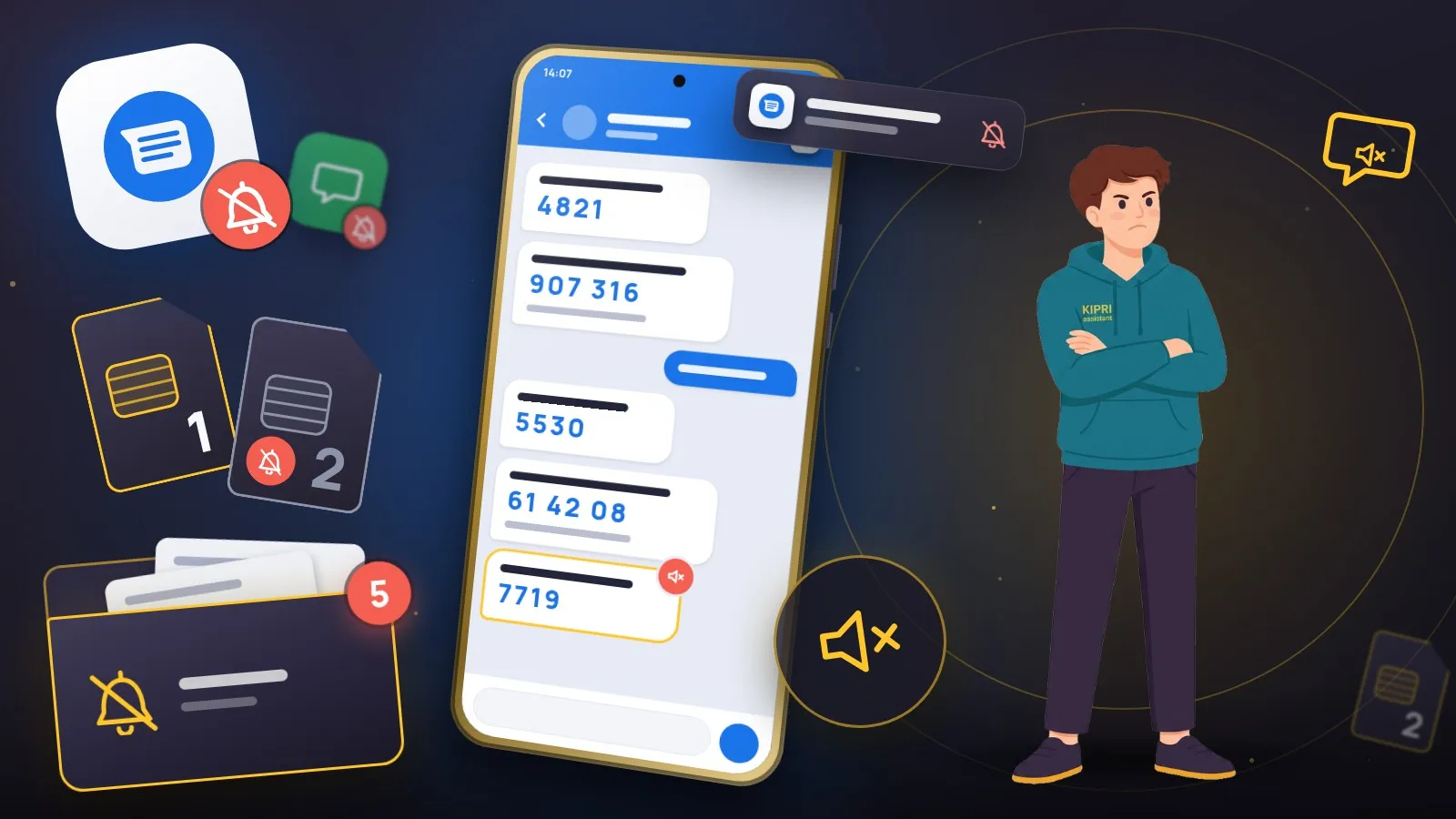
A missing text is one of two different problems. Either the message is nowhere, not in the shade and not in the conversation. Or it is sitting in your messages app and the phone simply never told you. The fixes barely overlap, so before touching any settings, open the messages app and look for the text. Whether it is there decides where you start.
Everything below comes from the official help pages of Google, Samsung, Huawei and Honor. Some of those pages exist only in Russian for the brands in question, so the labels on an English-language phone may be worded differently. Look for them by meaning.
The text never arrived
Signal, SIM and carrier
Google Messages’ troubleshooting page starts with the basics: check the mobile signal, turn off airplane mode, make sure the SIM card is inserted properly, and check that your account has enough credit to send and receive messages. It also asks you to confirm your carrier supports SMS.
Samsung suggests a neat way to tell the phone apart from the network. Put in a SIM card from a different carrier. If texts arrive with it, Samsung says to contact your own carrier. If they still do not, the problem is the device, and Samsung points you to a service centre.
Block list and spam
If texts go missing from one number only, or one bank, check blocking first.
In Samsung Messages the block list lives in the app’s own settings, under blocking numbers and spam. Samsung’s help is clear about what happens to a blocked text: it arrives with no sound or notification, does not appear in the main list, and is saved to the Spam folder. So technically it did arrive. You just will not see it until you look there.
Google Messages has its own filter. According to Google, when it detects suspected spam it can stop the message from being delivered and hide it in the spam folder. To open it: tap your profile picture or icon, then Spam & blocked. You can unblock a number from the same list. The filter itself is under Messages settings → Protection & Safety → Spam protection, and Google notes the option only shows up on compatible devices.
If a verification code or a message from your bank never came and the signal is fine, look in both places: spam and blocked.
Storage
Google’s help says the phone needs enough free space to receive messages. When it runs low, Google Messages shows a notification warning that it may not send or receive messages until space is freed up.
The default SMS app
Android hands incoming texts to one app: the default SMS app. The Android Developers blog spelled this out back in Android 4.4: only the app the user picked as default in system settings receives the new-SMS broadcast. If you once installed a third-party messenger or caller-ID app and agreed to make it your SMS app, texts go there and your usual Messages app stays empty.
Where to switch it back:
- Samsung: Settings → Apps → Choose default apps → SMS app.
- Google Messages: open the app and accept the prompt to make it the default, or go to Settings → Apps → Google Messages → SMS.
Google’s own troubleshooting list puts this check near the top.
Another app is interfering
Samsung recommends Safe mode, where only the apps that came with the phone run. If texts arrive in Safe mode, uninstall recently added apps one at a time until you find the culprit.
The text arrived, but the phone stayed quiet
Do Not Disturb and sound mode
All three manufacturers start here. Samsung’s SMS page makes the point directly: in Do Not Disturb mode messages still arrive, but there are no notifications. If texts go quiet only at night or during work hours, the mode probably has a schedule.
Huawei and Honor also ask you to check the sound mode in the quick settings. Samsung’s page on silent texts adds the notification volume: Sounds and vibration, then the volume tab, then the Notifications slider.
Huawei and Honor: a setting on each SIM
This one is easy to miss because it is not in the general notification settings. It sits inside the settings for a specific SIM card.
Huawei’s path: Settings → Apps & services → Apps → Messages → Notification manager. Turn on Allow notifications, then pick SIM 1 or SIM 2 and turn off the smart notifications switch for it. Lock screen, banners and badges should be on as well.
Honor’s path is shorter: Settings → Apps → Messages → Notifications, then Card 1 or Card 2, and turn the same switch off. If Allow notifications is already on, Honor suggests turning it off and on again.
Huawei’s English help calls this feature Gentle notifications and describes it like this: notifications “will only display in Notification Panel, and will not appear as banners, lock screen notifications, or status bar icons, nor will your device ring or vibrate.” Which is exactly the complaint.
As a last resort, both help pages suggest clearing the Messages app’s storage (Huawei lists this for HarmonyOS 4.x and earlier), and Honor adds a restart afterwards. Neither page says what happens to your conversations, so back them up first.
The rest of what these skins need, such as manual app launch, is in the Huawei and Honor checker.
Samsung and Google Messages: sound and categories
In Google Messages, new-text notifications are turned on under Notifications → Incoming messages. Individual conversations can also be set to silent or priority, so if only one person is quiet, check that conversation first.
In Android, sound, importance and pop-up behaviour belong not to the app as a whole but to each of its notification categories. If texts are silent while notifications are allowed, open the messages app’s notification settings and check the sound on the incoming messages category. How categories work is covered in the article on Android notification channels.
Samsung’s page on silent texts goes in order: turn sound on in quick settings, raise the notification volume, check the notification sound settings, then try Safe mode. A factory reset is the last item, with a reminder to back up first, since it wipes everything. The rest for Galaxy phones, including One UI’s sleeping apps, is in the Samsung checker.
The short version
Text not in the conversation: signal and SIM, block list and spam folder, storage, default SMS app. Text in the conversation but silent: Do Not Disturb, volume, notification permission, the per-SIM switch on Huawei and Honor, the sound on the category.
And if messengers are going quiet too, not just texts, the problem is not SMS. The general breakdown covers how Android skins put apps to sleep.
Did this help?
Thanks, that is the best answer. If it helped, it may help someone else too.
Thanks for saying so. Tell us what was missing and we will add it: [email protected]